Click an entry to read the longer explanation.
New
-
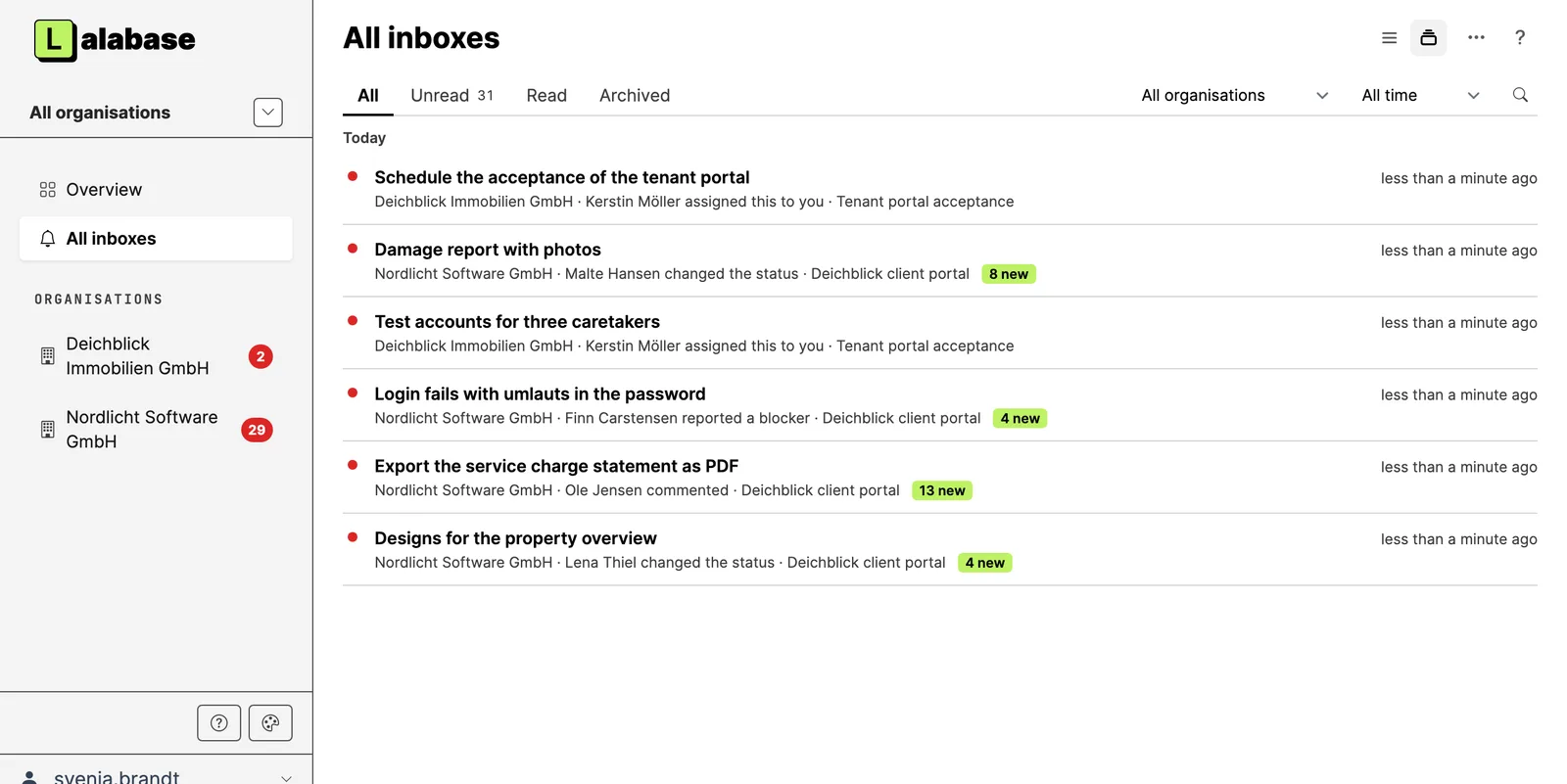
One inbox across all organisations: everything in one place, kept current, with actions on several entries at once.
- Before:
- If you work in several organisations, you had to open each inbox on its own to see whether anything new had come in.
- After:
- The all-inbox shows the notifications of all your organisations in one list, with the unread count per organisation. You read, archive or tick several at once, tickets, notes and documents open beside the list, and it stays current by itself. With two or more organisations you find it in the organisation switcher.
-
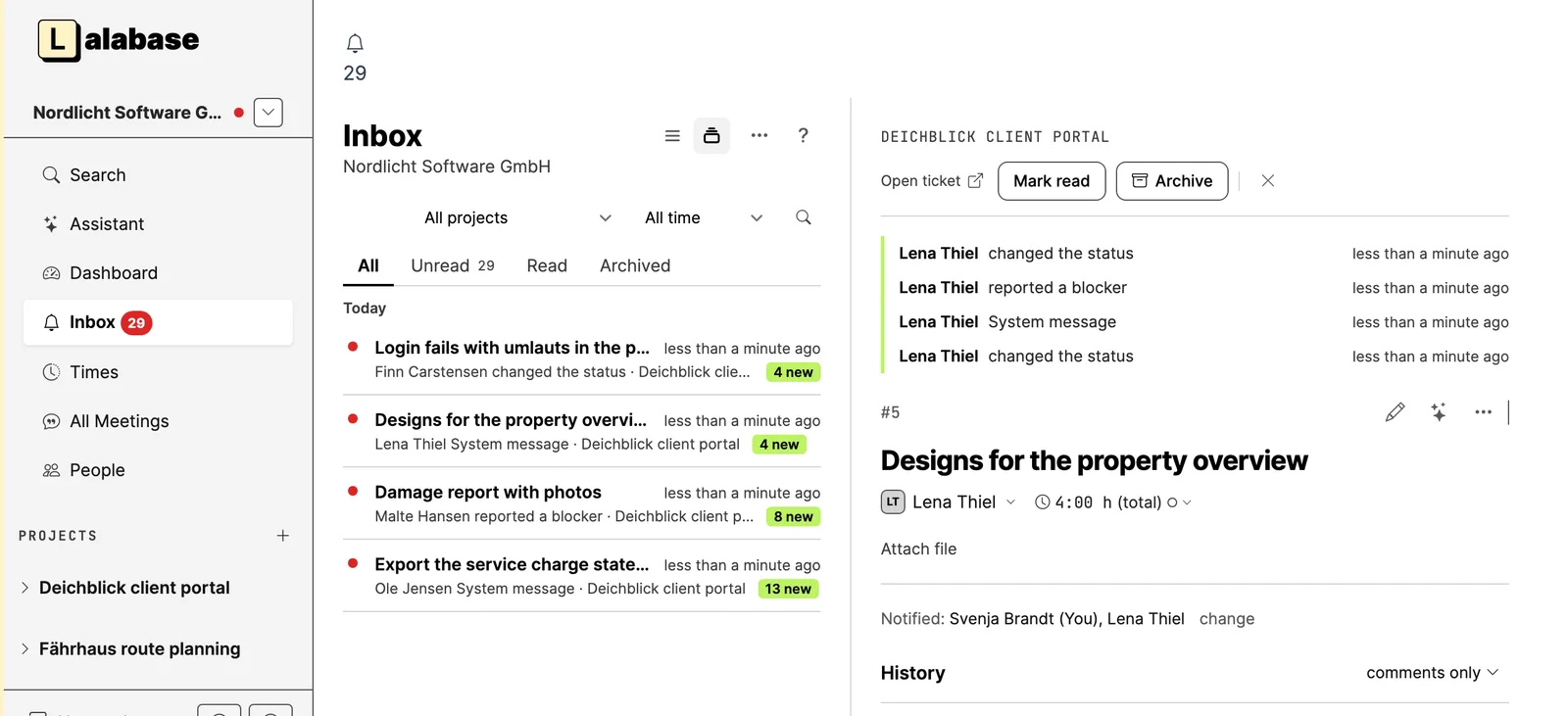
The inbox in the design of the other lists, with actions on every row, search as you type, a period filter and views as tabs.
- Before:
- The inbox worked differently from the other lists. To mark a notification as read or archive it, you had to open it first. The search ran only after Enter, and there was no filter by period.
- After:
- The inbox looks like the ticket list: the notifications on the left, the open one beside them. With "···" on every row you mark a notification as read or unread or archive it right there. The search shows results as you type. At the top you switch between All, Unread, Read and Archived, and a period filter (this week, this month, last 30 days and so on) narrows the list.
-
People across all organisations: one list and, per person, a card with everything your organisations know about them.
- Before:
- If you work in several organisations, you found a person only in the organisation they are entered in. Whether they exist elsewhere too and what is noted about them there, you had to piece together yourself.
- After:
- Under "People" on the level above your organisations, the people of all your organisations are in one list, with search and a filter by organisation. Someone with the same account in two organisations is listed once. A click opens their card beside the list: equal details show once, differing ones all. The "Origin" view shows which organisation entered what, and the pencil leads to the detail in its organisation. From two organisations on, a globe in the sidebar next to "Inbox" and "People" takes you straight there.
-
Merge the same person from two organisations into one, for you only.
- Before:
- Lalabase could not know that two entries in different organisations are the same person, such as a service provider that two clients keep as a contact.
- After:
- On the people list above your organisations, tick the rows and choose "Merge". From then on it is one person with one card. This applies to you only: nothing changes in the entries of the organisations, and you can undo the merge at any time.
-
Take a contact over into another organisation, with the fields you choose.
- Before:
- If you needed the same contact in two organisations, a technical service provider for example, you had to type it in twice.
- After:
- In the "···" menu of the card, choose "Take over into another organisation", then the organisation and the fields. The name always comes along, the note never does. The new person then opens in the other organisation, and on your people list above the organisations both are already merged.
-
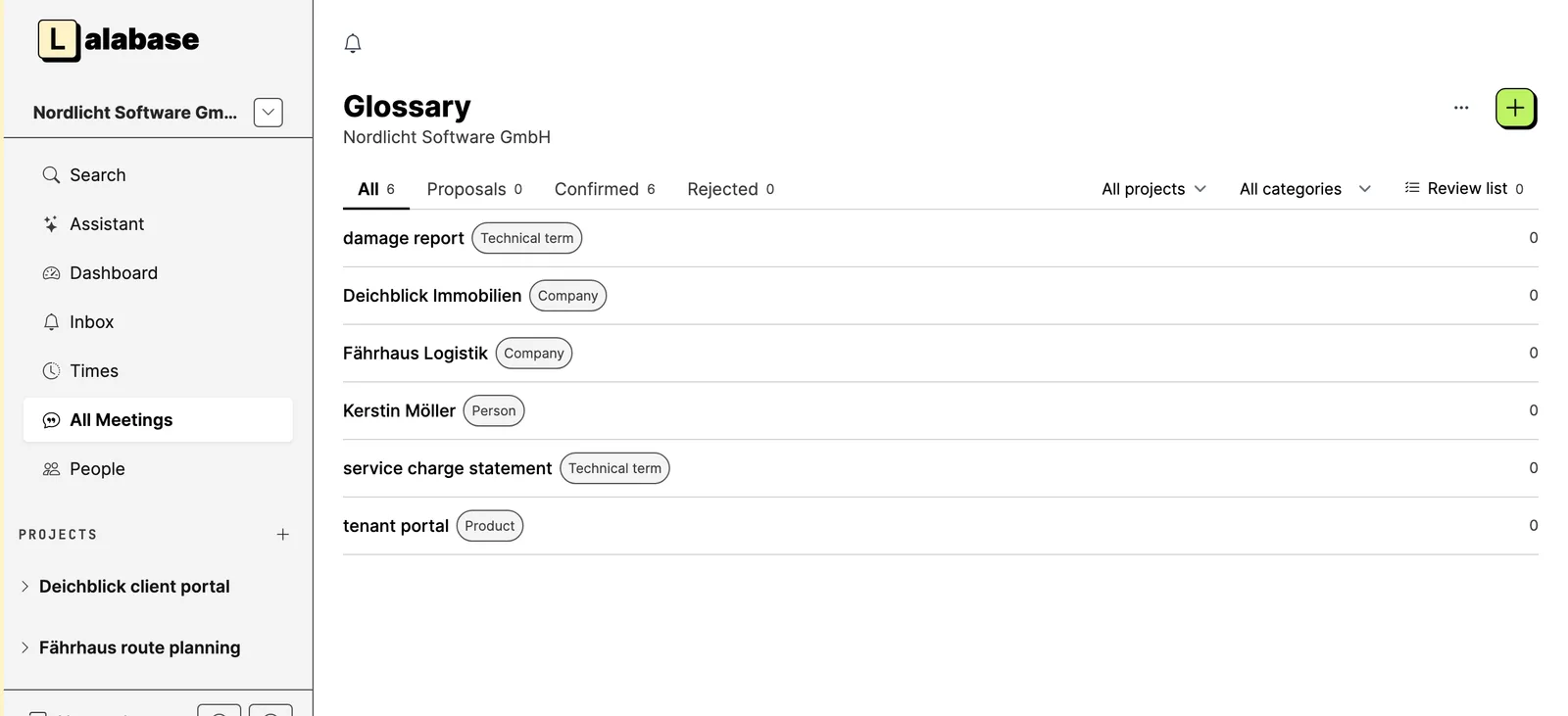
A glossary per organisation: keep your terms, paste a list and review suggestions from tickets, knowledge and documents.
- Before:
- Speech recognition often gets product names, technical terms and names wrong. You could not find them in a meeting's transcript, and there was no place that held the right spellings of your organisation.
- After:
- The glossary is the list of those spellings. You add terms one by one, paste a whole list (one term per line, checked before the import) or ask for suggestions: Lalabase reads tickets, notes and documents with your organisation's AI model, and you decide on every suggestion. Who may see and keep the glossary is set in the roles.
-
Correct a misheard word in a meeting. Lalabase learns it for the glossary and shows what it replaced.
- Before:
- A misheard word in a meeting's transcript stayed wrong, and the next meeting made the same mistake again.
- After:
- You mark the word in the transcript and choose "Correct", only there or everywhere in the meeting. Lalabase keeps the correction for the glossary, with speaker and project. When a meeting arrives with replacements from the glossary already made, Lalabase shows which words were changed.
-
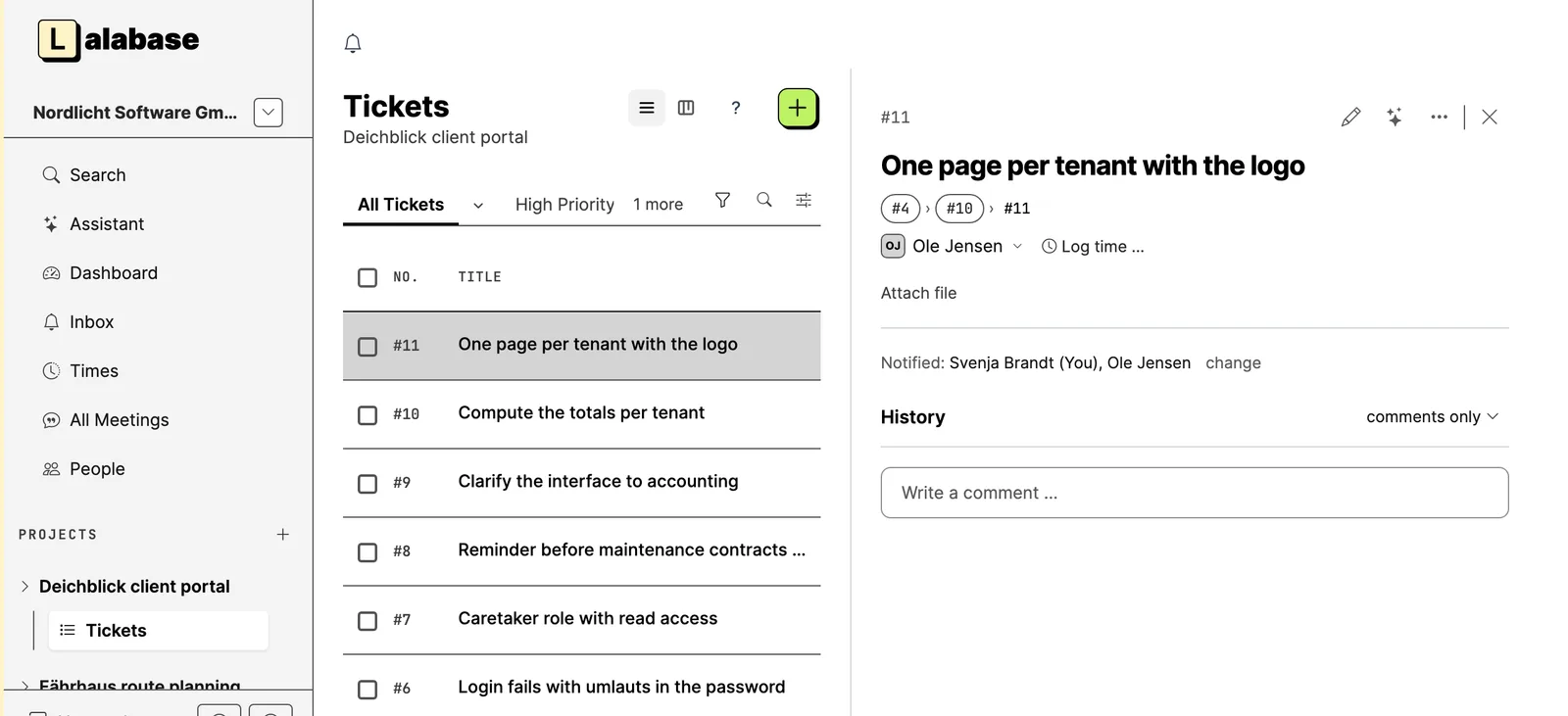
Sub-tasks at any depth, with the trail of their parents in the ticket head.
- Before:
- A task could have only one level of sub-tasks. Larger pieces of work could not be split any further.
- After:
- Every sub-task can have sub-tasks of its own, as deep as your project needs. The head of a ticket shows the trail, for example #4 › #12 › #31, and one click takes you back to the parent task.
-
Pasted links to tickets, meetings, people, notes and documents show in the text as a chip with their title.
- Before:
- A pasted link to a ticket or a meeting stood in the text as a long address. Where it led, you only saw after clicking.
- After:
- In comments, ticket descriptions and notes such a link shows as a chip with an icon and the title, for example "#42 Review offer". This works for tickets, meetings, people, notes and documents you may see. What is stored stays the plain link, in emails and over the API too.
-
Read meetings and the glossary over the API and MCP, and create meetings. Without a project they land in an inbox project you choose.
- Before:
- Meetings existed only in the interface. Programs and AI assistants could not reach them or create any.
- After:
- Over the API and over MCP (the interface AI assistants like Claude use to work with Lalabase) meetings can be read, with participants, summary, notes and transcript, and created. If the program knows no project, the meeting lands in the inbox project you choose in the organisation settings; from there you move it later. The glossary can be read as well. The same rights apply as in the interface.
-
Self-hosting Each organisation can get a subdomain of its own, such as client.example.com.
- Before:
- All organisations of an instance lived under the same address.
- After:
- The instance admin can give each organisation a subdomain of its own, such as client.example.com. You sign in on the main address, and the sign-in then holds on the subdomain too. The address only decides where a page is shown: someone who is not a member gets no access through it. The feature is off until you switch it on, and it needs a wildcard DNS entry and a matching certificate. The steps are in the changelog.
Fixes & maintenance
-
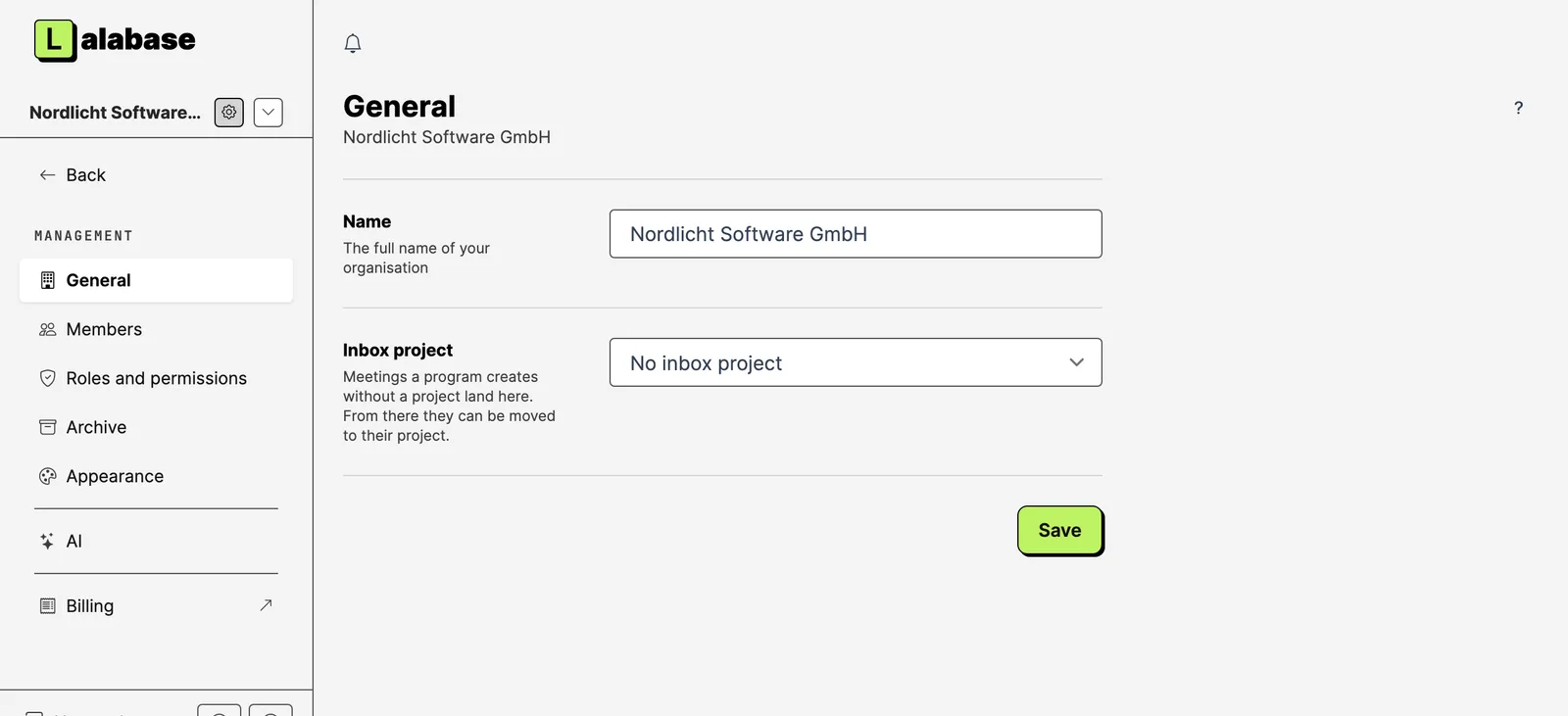
New navigation: sidebars of their own for management, the level above your organisations and your account.
- Before:
- The sidebar looked much the same everywhere. In management, in your account and on the level above your organisations you had to find the way back yourself.
- After:
- The sidebar adapts: in management it shows its sections, above your organisations the overview, the all-inbox and your organisations with unread notifications, in your account the account pages. "Back" leads to where you came from. If you are in several organisations, the logo leads to the organisation select page.
-
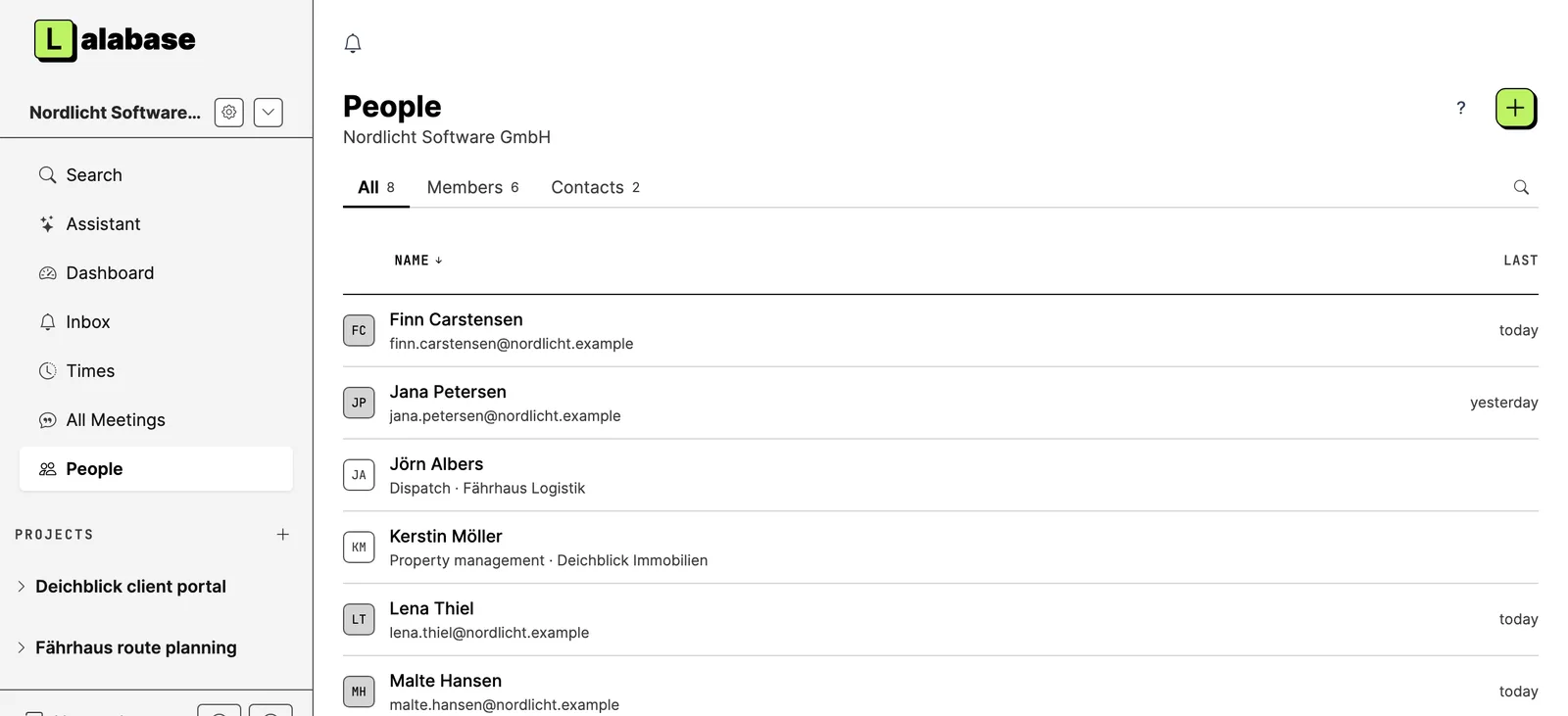
One list bar and view switch across tickets, times, inbox, people and glossary.
- Before:
- Inbox, people, glossary and tickets each had their own bar, search field and view switch, in different places.
- After:
- All of them have the ticket list's bar: views as tabs, the tools on the right and a magnifier for the search. The view switch is the same icon pair on tickets, times and inbox, and the main action ("+") is always on the outer right.
-
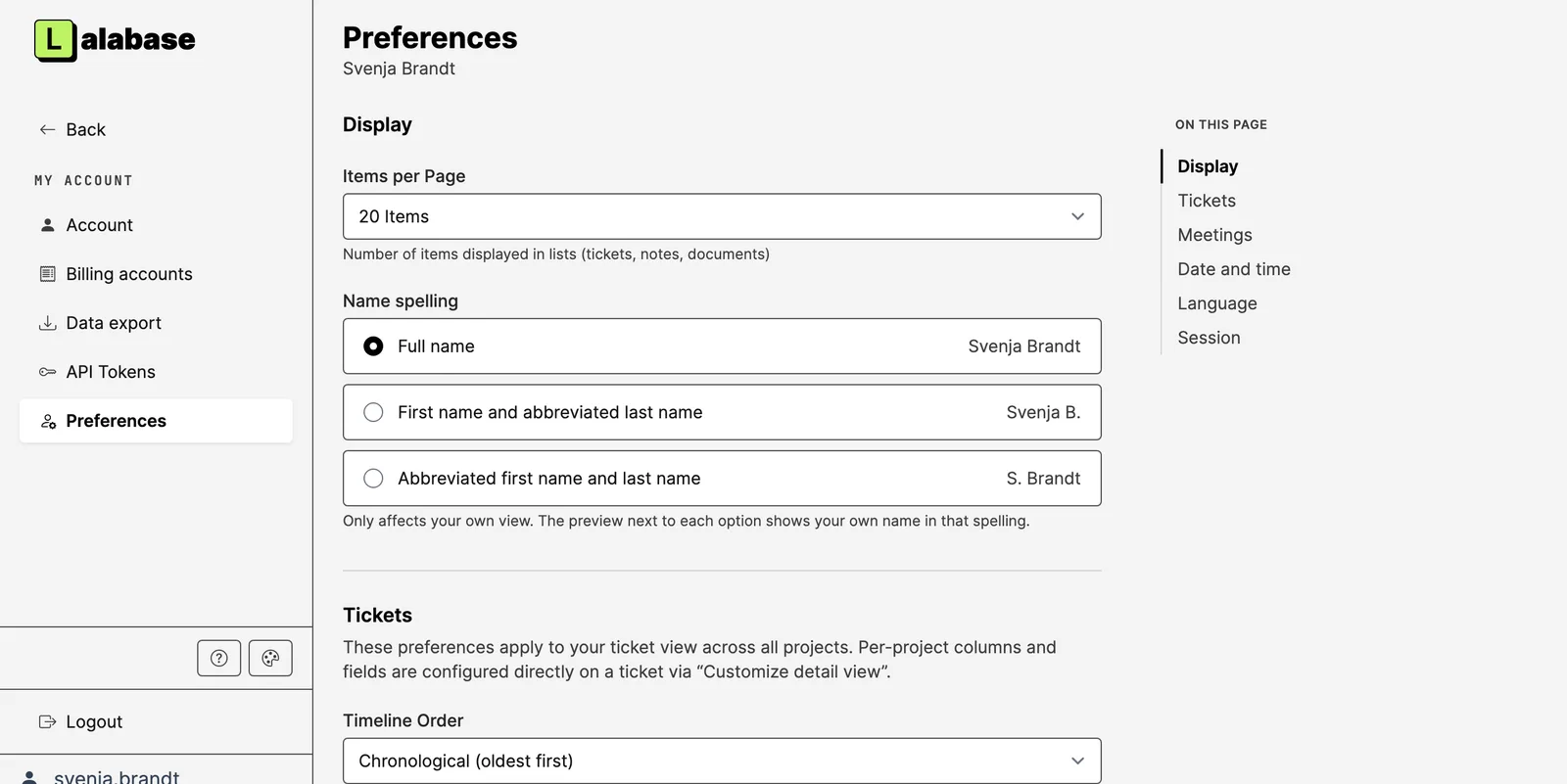
The account in three tabs. Preferences are one page that saves everything at once.
- Before:
- Personal data, password and deleting the account stood on one long page. The preferences were spread over seven small pages.
- After:
- The account has three tabs: personal data, password and delete account, with an explanation first and a pointer to the data export. The preferences are on one page, and every change is saved at once and confirmed with "Saved".
-
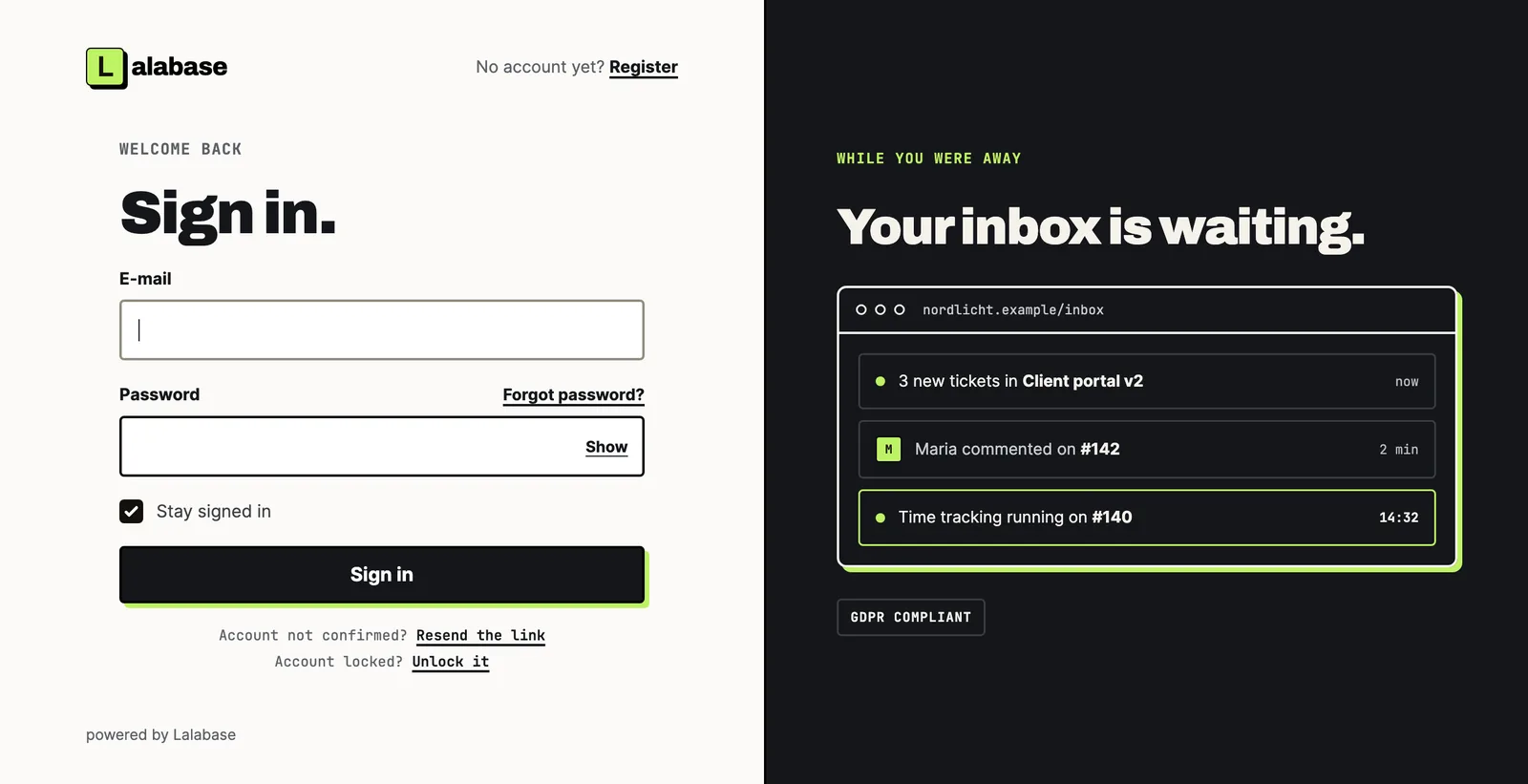
The sign-in pages in the design of the website.
- Before:
- The sign-in pages looked different from this website.
- After:
- Sign-in, forgotten password, confirmation, unlock and signing up through an invitation have the website's design. Nothing changes in how they work.
-
A calmer writing area in the assistant: AI notice in the head, style in the settings, references in one row.
- Before:
- Below the conversation with the assistant, five blocks were stacked, among them style, length and the AI notice. With several references the row above grew taller and pushed the input field down.
- After:
- The AI notice sits small in the head next to "Assistant" and opens when you need it. Style and length are in the settings (gear) and apply to all conversations. The "Topic" row sums up several references in one chip, such as "3 tasks · 1 note", and opens their list above it without moving the field.
-
Documentation images come from your own instance and also show from private repositories.
- Before:
- Lalabase can show documentation from a Git repository. Its images loaded straight from the repository's host, and from private repositories they did not show at all.
- After:
- Lalabase copies the images and shows them only to people who may read the documentation. Images from private repositories show. Limits: 5 MB per image, no SVG yet.
-
"Items per page" also applies to activities and saved views, and a wrong page number no longer leads to an error page.
- Before:
- The activities of projects and members and the saved views always showed 25 rows, whatever "Items per page" was set to. A page number that does not exist led to an error page.
- After:
- These lists follow your setting, like all the others. A page number that does not exist shows a page instead of an error, and past the end a link leads to the last page.
-
A confirmation before deleting in meeting and note forms.
- Before:
- The delete button in the edit form of meetings and notes deleted at once, without asking.
- After:
- It asks first whether you really want to delete, as everywhere else.
-
Signing out ends all your sessions, in other browsers as well.
- Before:
- Signing out ended only the session in the browser you signed out in.
- After:
- Signing out now ends all your sessions, on every address of the instance and in other browsers. That is why everybody is signed out once by the update to this version. If you chose "Stay signed in", you are signed in again without your password.
-
Self-hosting Ruby 4.0.10 with the security fixes of 18 November 2026.
- Before:
- On 18 November 2026 the Ruby project announced several vulnerabilities in Ruby itself, in regular expressions and in upper and lower case conversion. Some of them may allow running foreign code.
- After:
- Lalabase runs on Ruby 4.0.10, which closes these holes. The Docker image brings the new version. Without Docker, install Ruby 4.0.10 before you update; the steps are in the changelog. The cloud already runs it.
-
Several security improvements, including sign-in and search over the API.
- Before:
- The sign-in pages revealed whether an email address had an account. The ticket search over the API also found words from private comments the searcher may not read.
- After:
- Both have stopped. On top come stricter checks on the API and the MCP interface, and updated libraries with known security issues.
Technical details and upgrade notes for self-hosting are in the changelog of the source code. Changelog on GitHub