Glossary
Speech recognition often gets product names, technical terms and names wrong. The glossary is the list of your organisation's right spellings. For each term it remembers the forms in which it was misheard, by whom and in which meeting. The glossary belongs to the whole organisation, not to a single project.
You open it from the ··· menu at the top of All Meetings or of a project's meetings, entry Glossary.
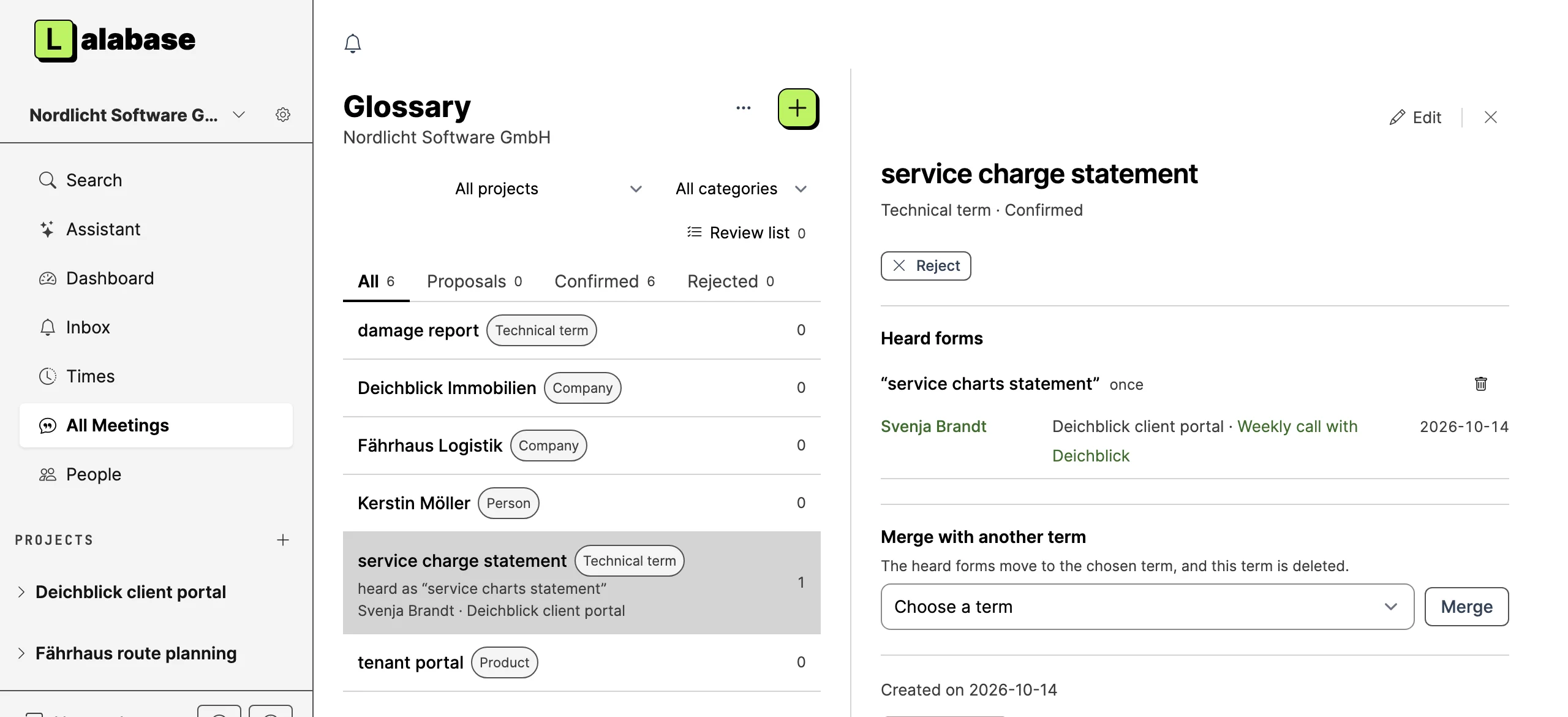
Example with invented data.
Who may do what
Two permissions in the roles control the glossary:
- View the glossary: read the terms, with the heard forms, speakers and projects of every meeting of the organisation.
- Keep the glossary: create, change, confirm, reject, merge and delete terms, and decide on suggestions.
No existing role gets these permissions by itself. Account admins may do both; give them to other roles under Management > Roles and permissions.
Adding terms
- Click the plus in the glossary.
- Enter the right spelling and, optionally, choose a category: Person, Company, Product, Place, Technical term or Foreign word.
- Save.
Each term is in the glossary once. Upper and lower case do not make a second one.
At the top you narrow the list by project and category. The tabs All, Proposals, Confirmed and Rejected show the terms by their status.
Importing a list
If you already have the terms in a list, paste them all at once:
- Choose Import list in the glossary's ··· menu.
- Paste the terms, one per line. Add a category after a semicolon
(
maintenance contract;Technical term) or separate it with a tab, for example when you copy from a spreadsheet. - Click Check. Nothing is saved yet: Lalabase shows line by line what the import would do, that is new, already there, twice in the list, invalid or rejected.
- If everything is right, click Import. Otherwise go back with Change list.
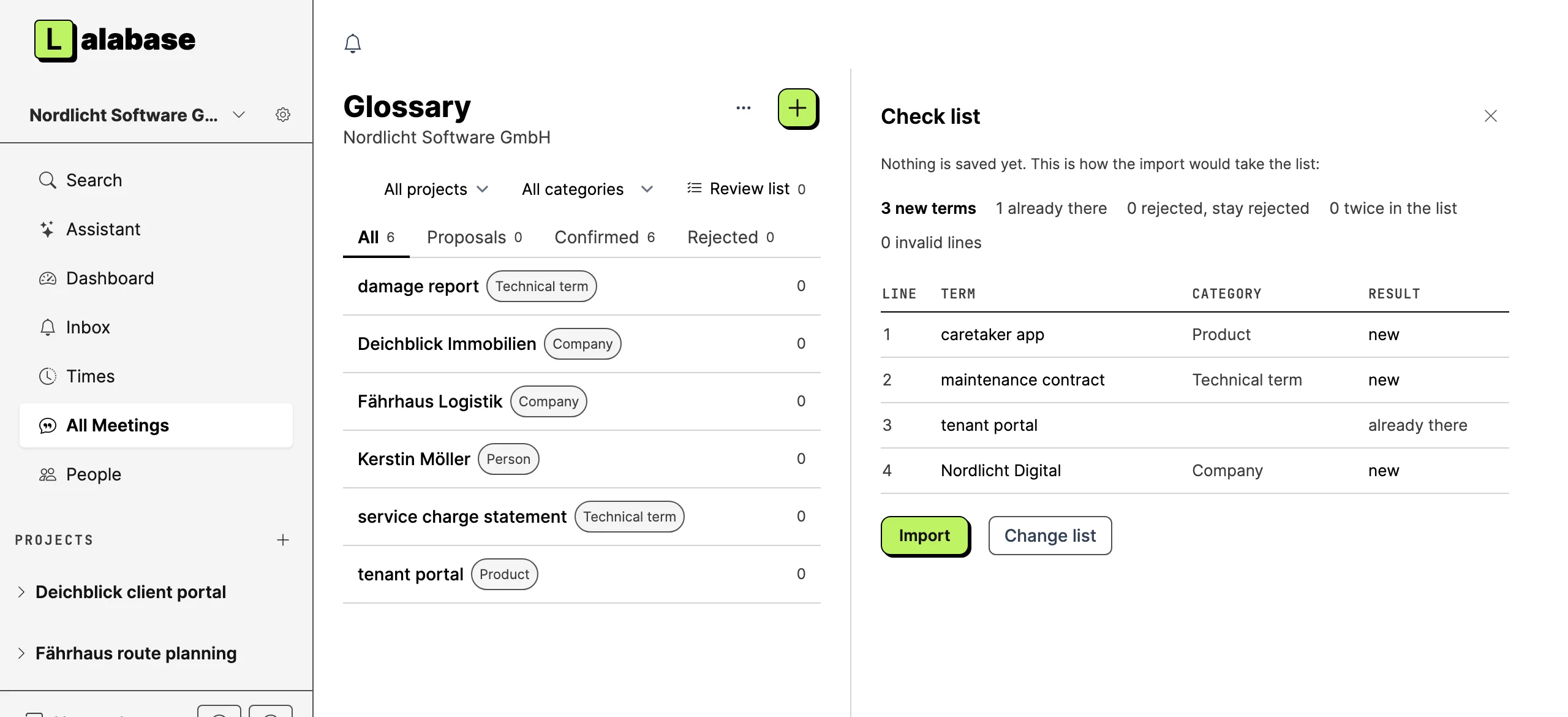
New terms from an import are proposals, not confirmed terms. Whoever keeps the glossary confirms them. A rejected term stays rejected after an import too. At most 500 lines go in at once.
Letting Lalabase suggest terms
If AI is set up for your organisation, Lalabase looks for glossary terms itself. Open the Review list above the glossary and click Suggest terms. Lalabase reads tickets, comments, notes and documents with your organisation's AI model, only what changed since the last search. Read everything again reads it all once more.
For each suggestion you see where it was found and decide:
- Accept adds the term to the glossary. If you change the spelling first, the one found is added as a heard form.
- Is a spelling of … merges the suggestion with a term or another suggestion.
- Dismiss puts it aside. Restore brings it back.
A single document can be searched with Suggest glossary terms in its side view. The suggestions land in the same review list.
Heard forms
Under Heard forms each term shows how it was misrecognised, how often, by which speaker and in which meeting. They come from someone correcting a word in a transcript, see Correcting misheard words.
A heard form marked Proposal works nowhere yet. Whoever keeps the glossary confirms or rejects it. The bin icon deletes a heard form with all its corrections.
Two terms that mean the same you merge under Merge with another term. The heard forms move to the chosen term, and the other one is deleted.
The glossary in other programs
A recording program can read the glossary through the interface and replace misheard words before it sends a meeting. What it replaced shows above the transcript of the meeting under Righted from the glossary.